Migrating from ownCloud to Nextcloud#
LCSB ownCloud (owncloud.lcsb.uni.lu) is being replaced by LCSB Nextcloud and will be shut down around 4 pm on the 23rd of November (23.11.). All files stored on LCSB ownCloud are moved to LCSB Nextcloud automatically. You don’t need to upload them again.
This How-to Card explains how the migration works and sends you to the card that matches your situation. Each of these cards covers your whole migration from top to bottom.
Only the LCSB ownCloud server is shut down
If you use the ownCloud desktop client to connect to other ownCloud servers (e.g. of a partner institute), these connections keep working. The migration cards explain how to keep them.
How does the migration work?#
The migration takes place from the 23rd of November (23.11.) to the 24th of November (24.11.):
- Starting around 4 pm on the 23rd of November (23.11.), LCSB ownCloud (
owncloud.lcsb.uni.lu) becomes unavailable. The files on the ownCloud server are backed up and migrated to LCSB Nextcloud. - Starting on the afternoon of the 24th of November (24.11.), LCSB Nextcloud becomes available. The exact time will be communicated.
Only the files that are on the ownCloud server before 4 pm on the 23rd of November (23.11.) are migrated to Nextcloud. Unsynchronized local changes only exist on your computer and are not moved. Therefore, if you use the ownCloud desktop client, follow the Preparing for the migration from ownCloud to Nextcloud How-to Card no later than around noon on the 23rd of November (23.11.).
If you don’t want to be interrupted by the migration at all, copy your files to OneDrive, SharePoint or Teams. Once the migration is finished, you can upload them to Nextcloud again.
Which card should I follow?#
Did you use the ownCloud desktop client with LCSB ownCloud?
- No (e.g. you only used ownCloud in the browser): you don’t need to migrate anything. Your files will be on LCSB Nextcloud after the migration. Use the LCSB Nextcloud web interface, or set up the Nextcloud desktop client as described in the LCSB Nextcloud How-to Card. Also read Shares and public links and Mobile apps below.
- Yes: follow the card for your operating system:
| Operating system | ownCloud synchronization mode | Follow this card |
|---|---|---|
| macOS | Classic sync | Migrating from ownCloud to Nextcloud on macOS |
| Linux | Classic sync | Migrating from ownCloud to Nextcloud on Linux |
| Windows | Classic sync | Migrating from ownCloud classic sync to Nextcloud on Windows |
| Windows | Virtual files | Migrating from ownCloud virtual files to Nextcloud on Windows |
On macOS and Linux, the ownCloud client used classic sync. On Windows, check which mode you used (see below).
How to check your synchronization mode (Windows)#
The ownCloud client on Windows can synchronize in two modes:
- Classic sync: all files (or the folders you selected) are downloaded to your ownCloud folder.
- Virtual files: all files are visible in your ownCloud folder, but a file is only downloaded when you open it.
To check which mode you used:
- Open the ownCloud client: click the ownCloud icon in the notification area, at the bottom right of the taskbar (possibly hidden under ^).
- At the top left, select the account with the server address owncloud.lcsb.uni.lu.
- Click the ellipsis (
...) next to your folder sync connection. - Look at the menu:
- It shows Disable virtual file support: you used virtual files.
- It shows Enable virtual file support, or no such option: you used classic sync.

Shares and public links#
- Shares with users: files and folders that you shared with other users, and that other users shared with you, are migrated to Nextcloud automatically. You do not need to do anything.
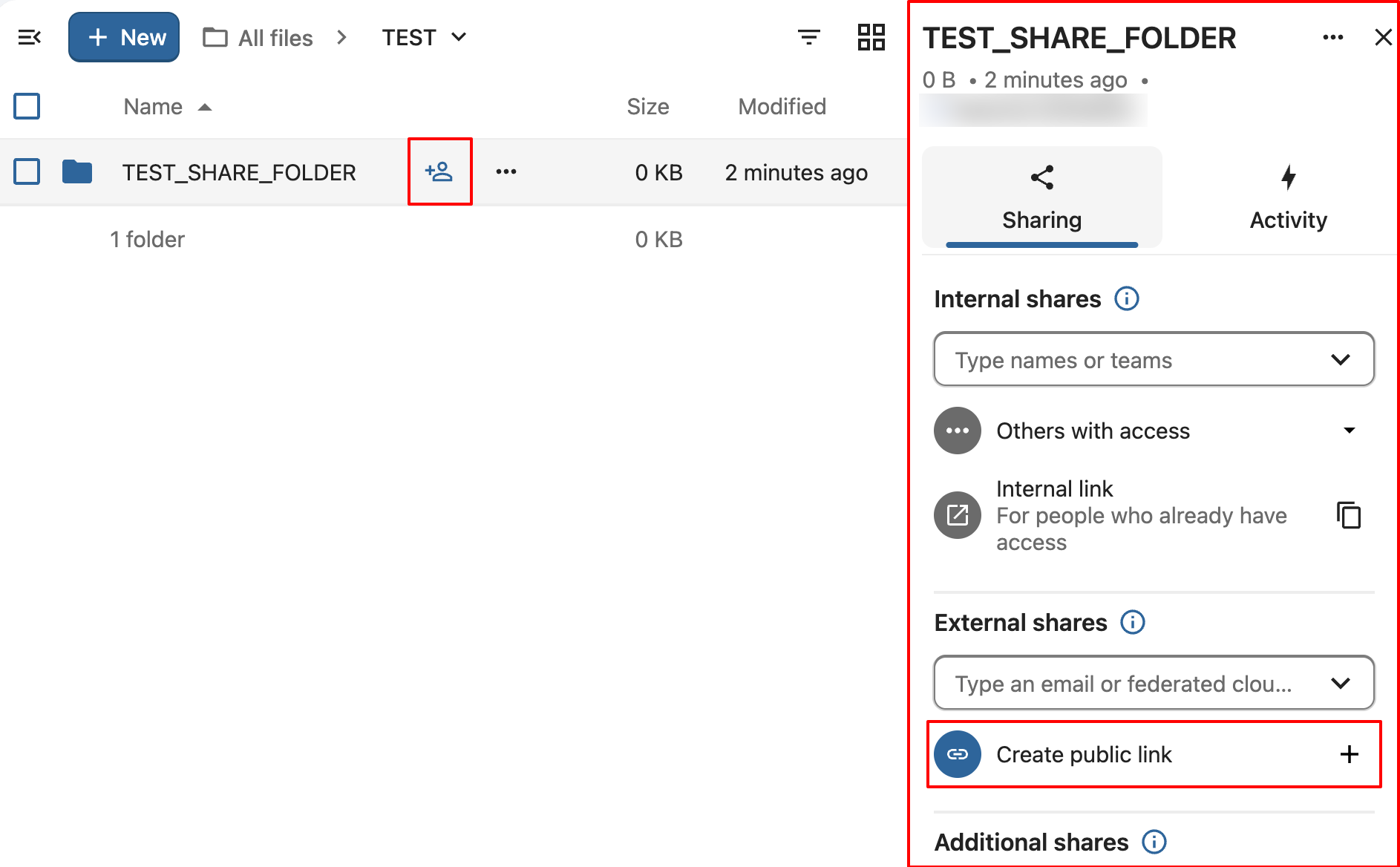
- Public links: public links created on ownCloud stop working when LCSB ownCloud is shut down. In Nextcloud, create a new public link for each file or folder you still want to share, and send it to the recipients. Follow the sharing rules (password and expiration date).
Cryptomator vaults#
Cryptomator vaults in your ownCloud folder are moved to Nextcloud together with all your other files. However, Cryptomator still points to the vault in your old ownCloud folder, so you need to add the vault again from its new location in your Nextcloud folder.
Before the migration, you locked your vaults (see Preparing for the migration from ownCloud to Nextcloud). After the migration, once Nextcloud has finished its first synchronization, and before you delete your old ownCloud folder:
- Open Cryptomator, select the old vault entry and remove it from the list. This does not delete the vault.
- Click Add > Existing vault and select the
vault.cryptomatorfile of the vault in your Nextcloud folder. - Unlock the vault and check that all your files are present.
Repeat these steps for each vault.
Mobile apps (iOS / Android)#
The ownCloud mobile app stops working with LCSB ownCloud when the server is shut down.
- Uninstall the ownCloud app (unless you use it for other ownCloud servers, in which case remove only the LCSB account in the app).
- Install the Nextcloud app from the App Store or Google Play.
- Enter the server address https://nextcloud.lcsb.uni.lu and log in with your SSO account (see Logging in).